How to Force Weekly Computer Reboots in MECM/SCCM: Fix Update Installation Issues with Automated Restart Compliance
How do I get my users to reboot their computers every week?
There are a lot of ways to do this, but i have a few requirements.
Use the built in Configuration Manager reboot counter
Use native windows tools (i.e. PowerShell)
There are many ways to get systems to reboot. but not many that use these two rules.
I opted to use the application method and create 2 applications
First we create an application (App1) that will detect the system uptime and write data to the registry to use for the detection method. Then it will exit with code 3010 (soft reboot).
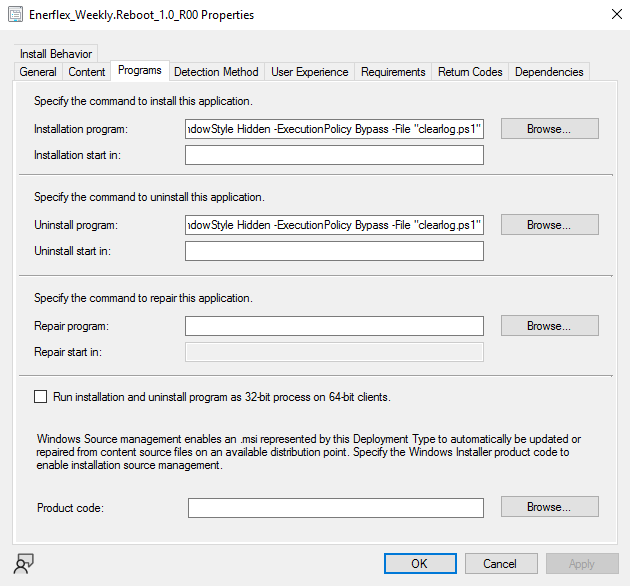
Use the following as the install and uninstall programs respectively
PowerShell.exe -WindowStyle Hidden -ExecutionPolicy Bypass -File "WeeklyRebootCheck.ps1"
PowerShell.exe -WindowStyle Hidden -ExecutionPolicy Bypass -File "clearlog.ps1"
Detection method:
Hive: HKLM
Key:SOFTWARE\bworld\RestartCompliance
Value: LastCheckTime
Data Type: String
The next application (App2) will remove the registry used for the detection method.
Copy the application, so it has all the same settings except
Use the clearlog.ps1 as the install and uninstall program.
You will deploy App2 with a dependency of App1.
WeeklyRebootCheck.ps1
# Simple script - check uptime and exit with appropriate code
$uptime = (Get-CimInstance Win32_OperatingSystem).LastBootUpTime
$daysSinceReboot = (New-TimeSpan -Start $uptime -End (Get-Date)).Days

# Log the check for troubleshooting
$logPath = "HKLM:\SOFTWARE\bworld\RestartCompliance"
if (!(Test-Path $logPath)) { New-Item -Path $logPath -Force | Out-Null }
Set-ItemProperty -Path $logPath -Name "LastCheckTime" -Value (Get-Date).ToString()
Set-ItemProperty -Path $logPath -Name "UptimeDays" -Value $daysSinceReboot

if ($daysSinceReboot -ge 7) {
    # Computer needs restart - log it and trigger 8-hour countdown
    $restartTime = (Get-Date).AddHours(8)
    Set-ItemProperty -Path $logPath -Name "RestartScheduled" -Value $restartTime.ToString()
    Set-ItemProperty -Path $logPath -Name "RestartReason" -Value "Uptime exceeded 7 days ($daysSinceReboot days)"

    Write-Output "Uptime: $daysSinceReboot days - triggering restart countdown"
    exit 3010  # MECM restart required - triggers 8-hour countdown

} else {
    # Computer is fine - do nothing
    Set-ItemProperty -Path $logPath -Name "Status" -Value "Compliant - uptime $daysSinceReboot days"

    Write-Output "Uptime: $daysSinceReboot days - no restart needed"
    exit 0     # Success - no restart required
}
clearlog.ps1
# Delete the entire registry key and all its contents
Remove-Item -Path "HKLM:\SOFTWARE\bworld\RestartCompliance" -Recurse -Force -ErrorAction SilentlyContinue
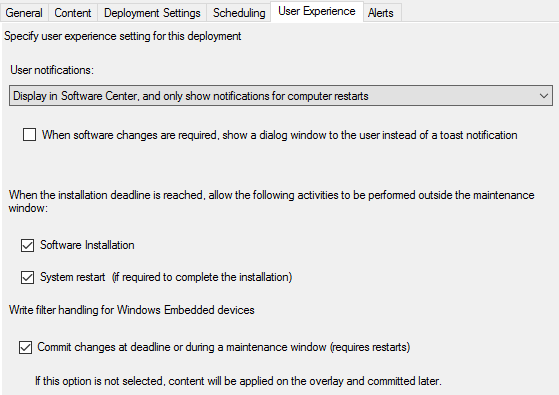
Now deploy App2 and be sure to set the user notifications to:
"Display in software Center, and only show notifications for computer restarts"
also be sure to check the box 'system restart' to occur outside of Maintenance Windows.
The application should now try to run daily, and if it has been 7 days since a reboot, then you will get a countdown to reboot.
you will see it in the software center as a perpetual 'Past Due - will be retried'

Here is a more verbose version for those that need step by step instructions.
Comments